Remove blank pages from a PDF on your phone
Remove Blank Pages from PDF on Google Play · BlankAway: Remove Blank Pages on the App Store — the same app, one name per store.
The app scans every page of the PDF on your device, finds the ones a scanner left blank, shows them to you as thumbnails, and removes the ones you confirm. The pages you keep are copied as they are: nothing is re-rendered or re-compressed.
Free to try · one-time purchase unlocks unlimited use · no subscription, no account
how to delete blank pages from a scanned pdf.
Five steps on an iPhone or Android phone. A typical 100-page scan takes well under a minute; nothing is uploaded, so there is no waiting for a server.
-
01
open the app
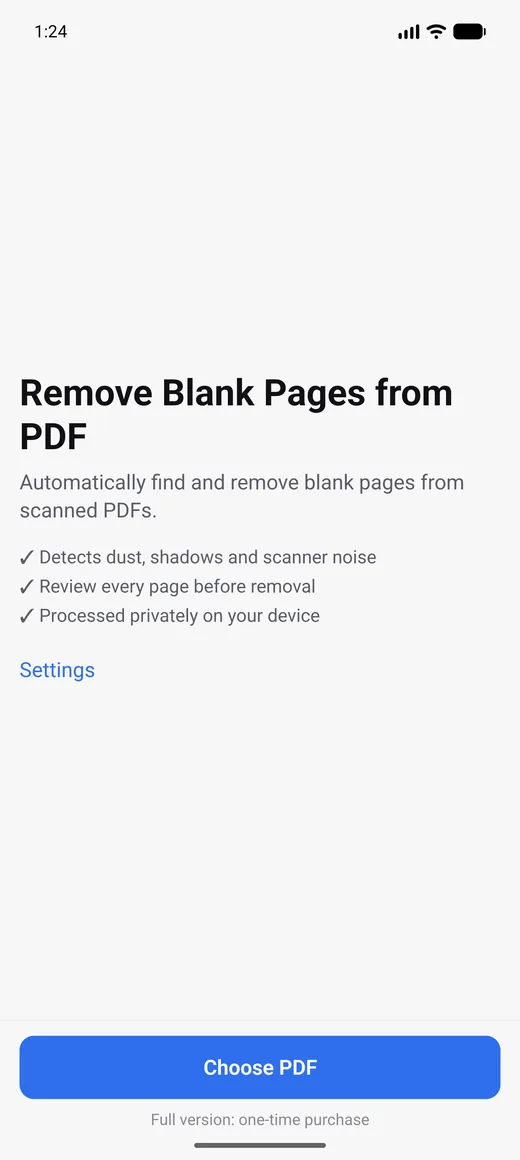
Install Remove Blank Pages from PDF (BlankAway on iOS) and open it. There is one button on the home screen.
-
02
choose the pdf
Tap Choose PDF and pick the file from Files, iCloud Drive, Google Drive, Downloads or any other provider on your phone. Detection starts straight away.
-
03
pick a sensitivity
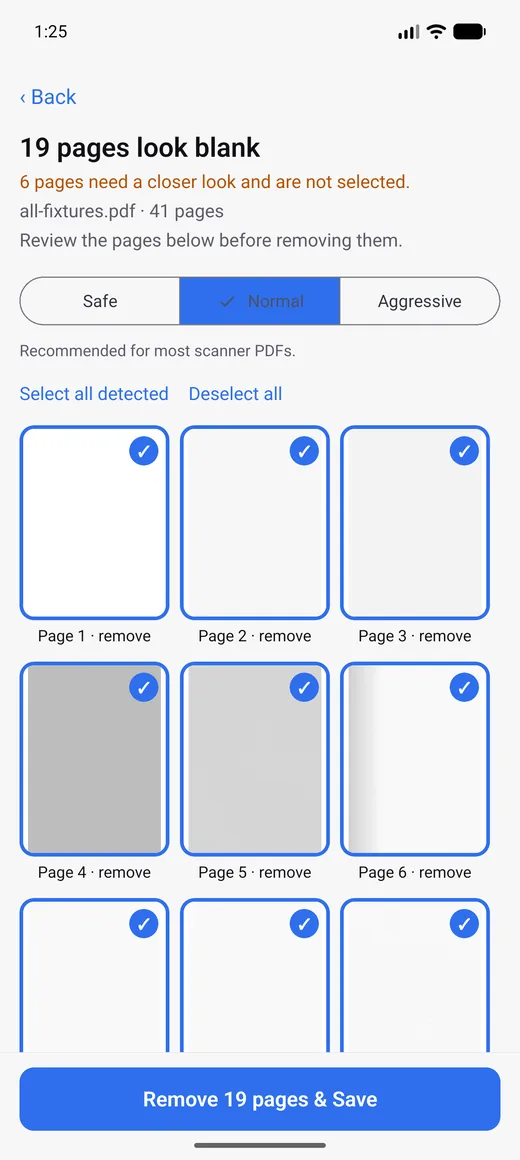
Normal suits most scans. Safe keeps anything doubtful; Aggressive also selects pages with only faint marks. Switching re-sorts the selection instantly, without re-scanning.
-
04
review the thumbnails
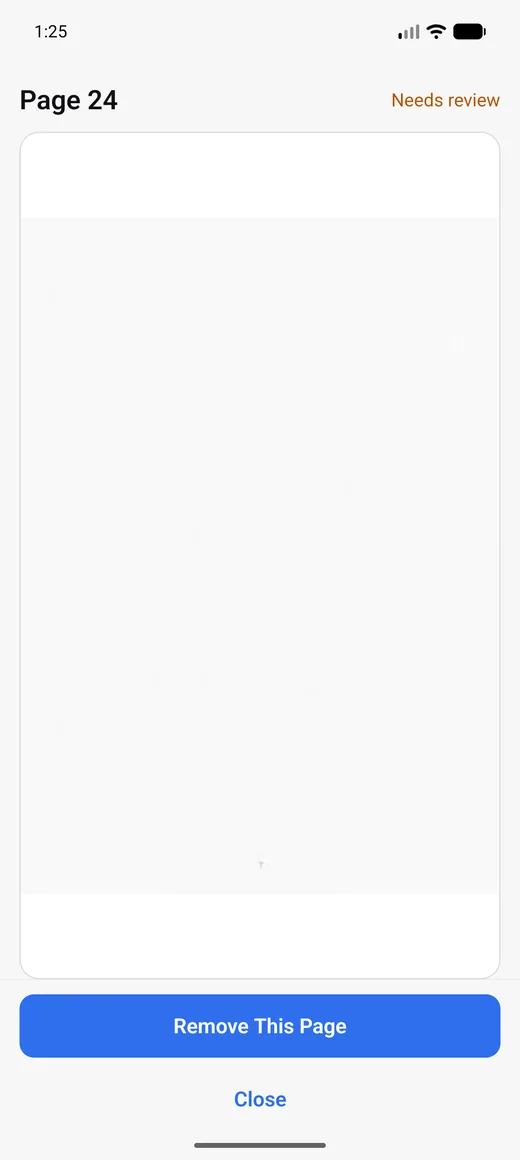
Every detected page is shown as a thumbnail. Borderline pages are marked “needs review” and are never selected for you. Tap any page to see it full size and decide.
-
05
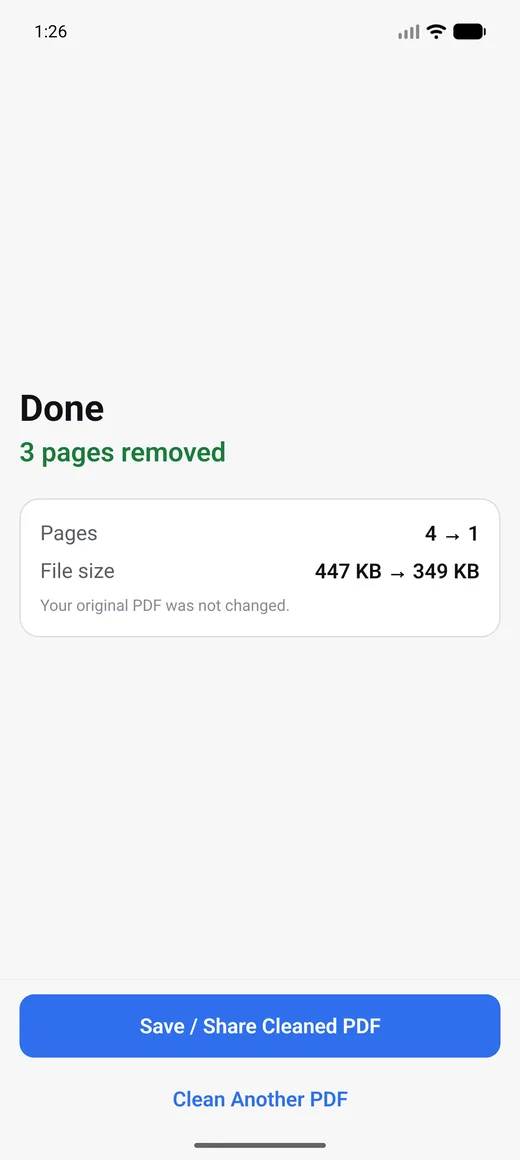
remove and save
Tap Remove, then save or share the cleaned PDF anywhere. Your original file is not changed, so you can always go back to it.
duplex scanner blank pages are never really blank.
Tools that count dark pixels or check for text fail on real scans in both directions: they keep pages full of scanner noise, and they throw away pages whose only content is small or faint. This app looks for meaningful marks instead of measuring darkness.
noise is ignored
Dust, shadows along the spine, grey or off-white paper, punch holes, roller streaks and bleed-through from the other side are all recognised as noise, not content.
small content is protected
A page number, a signature, a stamp, a line of faint pencil or the ruled lines of an empty form are content. Pages like that are kept, or shown to you as borderline, never removed silently.
you have the last word
Anything the detector is not sure about is flagged for review and left unselected. Bulk removal only ever applies to pages you can see in the list.
no quality loss
The cleaned PDF is built from the original page objects. Kept pages are copied byte for byte, so scans in JPEG, JPEG 2000 or JBIG2 stay exactly as the scanner wrote them and the file does not grow.
works offline
Detection and removal both run on the phone. Aeroplane mode changes nothing.
try it free. pay once.
No subscription, no account, no adverts. The unlock is a one-time purchase through the App Store or Google Play and restores on any device signed in to the same store account.
try it
- Scan and review any PDF, any size
- Export up to 3 cleaned PDFs of 30 pages or fewer
- All three detection modes
unlock everything
- Unlimited exports, any page count
- Restore on any device via the store
- No subscription, ever
your documents never leave your device.
The app makes no network connections for document processing. The only network activity is App Store or Google Play billing when you buy or restore the unlock.
- No uploads — PDFs and thumbnails stay on your phone
- No analytics, advertising or crash-reporting SDKs
- No account, no personal data, no device identifiers
- Working copies are deleted when you start over, or automatically after 24 hours
frequently asked.
How do I remove blank pages from a scanned PDF on an iPhone?
Install BlankAway: Remove Blank Pages from the App Store, open it, tap Choose PDF and pick the scan from Files or iCloud Drive. The app lists the blank pages it found; check them, tap Remove, then save or share the cleaned PDF. The Android version works the same way with Google Drive or Downloads.
Why does my duplex scanner add blank pages?
A duplex scanner captures both sides of every sheet. When a sheet is printed on one side only, the back is saved as a page too. Most scanners have a “skip blank pages” option, but it uses a simple darkness threshold, so grey paper, shadows and bleed-through often defeat it and the blanks end up in the PDF anyway.
Does it reduce the quality of my PDF?
No. Removal is structural: the app copies the pages you keep exactly as they are in the original file and only rewrites the page list. Images are not re-rendered or re-compressed, and the file does not grow.
Does it work with large PDFs?
Yes. Scans of several hundred pages are fine; pages are analysed one at a time so memory use stays low. The free version exports files of 30 pages or fewer; the one-time unlock removes that limit.
Is my original PDF changed? Can I undo it?
The original file is never opened for writing. The app produces a new PDF, so if you removed a page by mistake you still have the original and can run it again.
Is it free?
Scanning and reviewing any PDF is free. You can also export up to three cleaned PDFs of 30 pages or fewer without paying. After that, a one-time purchase unlocks unlimited exports of any size. There is no subscription.
Is my PDF uploaded anywhere?
No. Detection and removal run entirely on your phone. The app has no account, no analytics and makes no network connections for document work.
Is there a Windows or Mac version?
Not at the moment. The app is available for iPhone (iOS) and Android phones only.
support.
Questions, a PDF that wasn't handled well, or a purchase that didn't restore? Email us and a human will reply. Mention whether you're on BlankAway (iOS) or the Google Play version.